
For Frameo troubleshooting, first ensure your digital photo frame and app are updated. Next, check your internet connection.
Frameo digital photo frames have revolutionized how we share and display our cherished memories, offering a seamless way to update pictures through a simple app. These devices make it easy for families and friends to stay connected, regardless of the distance.
However, like any technology, users may occasionally encounter issues. Troubleshooting these problems quickly ensures your digital memories continue to refresh without interruption. Understanding the common issues and their fixes can save time and enhance your Frameo experience. This guide aims to address the most frequent troubles in a straightforward manner, making it easier for you to get back to enjoying your digital photo frame. Remember, keeping your device and app updated is crucial for a smooth, hassle-free experience.
Introduction To Frameo
Discover the world of Frameo, a leader in digital photo display.
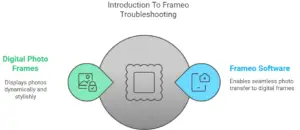
What Is Frameo?
Frameo is an innovative software solution for digital photo frames. It lets users send photos directly from smartphones to Frameo photo frames. These frames showcase cherished memories with ease and style.
The Rise Of Digital Photo Frames
Digital photo frames have transformed how we view and share photographs. Gone are the days of flipping through physical albums. Frameo brings photos to life with a simple tap.
Common Issues With Frameo
Frameo digital photo frames bring memories to life. Yet, users sometimes face issues. Let’s solve them together.
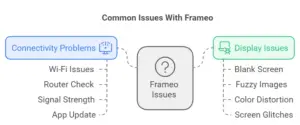
Connectivity Problems
Frameo frames need a stable connection. Wi-Fi issues can stop photo updates. Here are fixes:
- Check your router. Make sure it’s on and working.
- Move the frame closer to the router for better signal strength.
- Restart the Frameo frame and reconnect to Wi-Fi.
- Update the Frameo app. A fresh version may solve the problem.
Display Issues
A clear display makes photos pop. But sometimes, screens act up. Look below for common display problems and solutions:
| Issue | Solution |
|---|---|
| Blank Screen | Check the power source. Make sure the frame is plugged in. |
| Fuzzy Images | Use high-resolution photos. Frameo displays crisp images best. |
| Color Distortion | Adjust the settings. Correct color balance for a natural look. |
| Screen Glitches | Restart the frame. A quick reset often fixes minor glitches. |
Resolving Connectivity Concerns
Many users face connectivity issues with their Frameo digital photo frames. This section focuses on Resolving Connectivity Concerns to keep your memories flowing smoothly.
Wi-fi Connection Fixes
Wi-Fi problems can stop your Frameo from receiving new photos. Follow these steps to fix it:
- Check if your Wi-Fi is on and working. Try it with a phone.
- Move the Frameo closer to your router. Walls block Wi-Fi signals.
- Restart your Frameo and router. This often fixes the issue.
- Update your Frameo. New updates improve Wi-Fi connections.
Mobile App Connection Tips
Connecting your phone app to Frameo is easy. Use these tips:
- Ensure your phone’s Wi-Fi or data is on. Frameo needs internet.
- Open the Frameo app. Make sure it’s the latest version.
- Follow the app’s setup guide. It leads you through the process.
- If the app doesn’t connect, restart your phone and try again.
Fixing Display Glitches
Frameo digital photo frames bring memories to life. Sometimes, screens may glitch. Users need fixes for a seamless display. This section explains how to solve display glitches.
Adjusting Screen Settings
Screen settings can affect display quality. Users should check these first:
- Brightness levels
- Contrast settings
- Color balance
Access these settings directly from the Frameo menu. Adjust them to improve the display.
Troubleshooting Black Screen
A black screen can be alarming. Here are steps to fix it:
- Check the power connection. Ensure the frame is plugged in.
- Restart the Frameo frame. Hold the power button for 10 seconds.
- Look for firmware updates. Install them if available.
If the screen stays black, contact Frameo support for further assistance.
Software Updates And Firmware
Keeping your Frameo digital photo frame up-to-date ensures the best performance. Software updates and firmware upgrades can fix bugs and add new features. Let’s dive into how to keep your Frameo running smoothly.
Checking For Updates
Frameo frames make checking for updates easy. Follow these steps:
- Turn on your Frameo.
- Tap the screen to open the menu.
- Select ‘Settings’.
- Choose ‘About Frameo’.
- Press ‘Check for updates’.
If an update is available, a notification will appear. You can then proceed to install the latest firmware.
Installing The Latest Firmware
Updating your Frameo’s firmware takes just a few taps:
- From the ‘About Frameo’ menu, tap ‘Update’.
- Wait for the download to complete.
- The frame will restart automatically.
Ensure your frame is connected to Wi-Fi during this process. Do not turn off the frame while it updates.
Handling Photo And Video Playback Issues
Dealing with Photo and Video Playback Issues can frustrate you. This part of our blog helps you fix these issues. We cover formats, sizes, and how to make videos play better.
Supported Formats And Sizes
Knowing the right formats and sizes is key. Frameo supports certain types.
- JPG and PNG for photos.
- MP4 (H.264 codec) for videos.
Videos should be no longer than 15 minutes. The ideal photo size is 1920×1080 pixels.
Improving Playback Quality
Poor playback can ruin the moment. Here are tips to fix that.
- Ensure your Frameo is up to date.
- Restart your Frameo device.
- Check your WiFi connection. A strong signal is crucial.
- Resize photos and videos to match Frameo’s preferred specs.
Following these steps will give you clear and smooth playback.
Managing Frameo App Problems
Encountering problems with the Frameo app can be frustrating. Users love sharing moments with friends and family. When the app malfunctions, memories get put on hold. This section guides you through common issues and solutions. Keep memories flowing smoothly with these troubleshooting tips.
App Crashes And Freezes
App crashes and freezes can interrupt your experience. Here’s what to do:
- Close the app and restart your device.
- Check for software updates on your device.
- Clear the app’s cache from your device settings.
If problems persist, contact Frameo support. They can help sort out the issue.
Reinstalling And Updating The App
Staying up-to-date is key. Outdated apps lead to issues. Follow these steps:
- Uninstall the Frameo app.
- Restart your device to refresh its system.
- Download the latest version from your app store.
- Install the app and log in to your account.
Regular updates enhance app performance. Check for updates often.
Ensuring Long-term Functionality
Ensuring Long-Term Functionality of your Frameo digital photo frame is key. Proper care keeps memories fresh and vivid. Follow these guidelines to enjoy your Frameo for years.
Regular Maintenance Tips
- Keep your Frameo dust-free. Use a soft, dry cloth.
- Update the Frameo app. Ensure your frame has the latest features.
- Restart your Frameo weekly. This keeps it running smoothly.
- Check Wi-Fi connections. A stable network prevents disruptions.
- Manage your photos. Delete old ones to free up space.
When To Contact Frameo Support
Contact Frameo Support:
| Issue | Action |
|---|---|
| App crashes | Contact support if restarts don’t help. |
| Photo upload fails | Seek help when photo issues persist. |
| Screen issues | Report unusual lines or color shifts. |
| Wi-Fi problems | Get assistance if resets don’t resolve it. |
User Experiences And Tips
Many Frameo users share their experiences and tips online. These stories help others fix similar issues with their digital photo frames.
Community-driven Solutions
Users from around the world contribute to a wealth of knowledge. They discuss common Frameo problems and solutions. Friends in online forums often help each other. This collaborative spirit is a key to quick fixes.
- Frame not connecting: Users suggest checking Wi-Fi.
- Photos not updating: Restarting the frame often works.
- Screen issues: Adjusting brightness is a common fix.
Sharing Personal Fixes
Many owners post their personal fixes for Frameo issues. These tips are practical and easy to try.
| Problem | Fix |
|---|---|
| Slow Performance | Clear cache in settings |
| App Crashes | Update to latest app version |
| Frame Freezes | Hold power button to reset |
Using these tips, many users solve their problems without waiting for support. This saves time and frustration.
Frequently Asked Questions
Why Is My Frameo Not Connecting?
Frameo digital frames require a stable internet connection to sync photos. Ensure your Wi-Fi is active and within range, then try reconnecting your device.
How To Reset A Frameo Frame?
To reset your Frameo frame, locate the reset button or option in the settings menu. Press the button or confirm the reset action to restore factory settings.
Can Frameo Work Without Wi-fi?
Frameo frames primarily use Wi-Fi to receive new photos. Without Wi-Fi, you won’t be able to send or receive new content, but you can still view existing photos.
Frameo App Not Syncing, What To Do?
First, check your internet connection and ensure both your smartphone and Frameo frame are connected to the same network. Restart the app and attempt to sync again.
How To Update Frameo Firmware?
Navigate to the settings on your Frameo frame, and look for a firmware update option. If an update is available, follow the on-screen instructions to install the latest version.
Why Won’t My Frameo Turn On?
Check the power supply to ensure your Frameo frame is properly plugged in. If the issue persists, contact Frameo support for further assistance with your device.
Conclusion
Navigating Frameo issues can be straightforward with the right approach. This guide aimed to simplify your troubleshooting journey, ensuring you keep those digital memories in clear view. Remember, most problems have quick fixes, and for the trickier ones, Frameo support is just a click away.
Embrace these solutions and enjoy uninterrupted picture-sharing with loved ones.





Hello;
The backup card … Frameco doesn’t recognize it.
Do I need to do anything special with it?
Hello, thank you for reaching out!
It sounds like your Frameo isn’t recognizing the backup card. Don’t worry—this is a fairly common situation in Frameo Troubleshooting. You may need to check a couple of things to get it working:
If you’ve already tried these steps and it still doesn’t work, the problem may be with the frame’s card reader itself. In that case, contacting Frameo support could be helpful.
Let me know if this helps or if you’d like me to walk you through formatting the card step by step!
My Frameo went dark. We did everything and cannot get it to work again. What can I do?
Hi there, thanks for reaching out. I’m sorry to hear your Frameo went dark — that can be frustrating. Let’s go through a few quick Frameo troubleshooting steps you can try:
If it still won’t power on after these steps, the issue may be hardware-related, and you may need to contact Frameo support for repair or replacement.
Let me know if this helps, or check our full guide for more detailed solutions!
frameco went dark on sunday morning cannot restart black screen what should I do?
You’ll find the answer in my previous comment. Hopefully, that resolves everything. Wishing you all the best. Thanks
WHY IS MY Y5 NOT CONNECTION
It sounds like your Y5 is having trouble connecting to Wi-Fi. Here are a few things that often help resolve connectivity issues:
my frameo will not work. the word on screen FRAMEO.
It sounds like your Frameo frame is getting stuck on the boot screen, which can definitely be a puzzling issue. You could try a few steps to get it working again:
Hi
My iphone 7 is not compatible with app and unable to use frame. ios will not update to current version of app.
It sounds frustrating when technology doesn’t quite line up. An iPhone 7 can update to iOS 15 at most, so if the current Frameo app requires a newer iOS version, that would definitely cause a compatibility issue.
Here are a few things that might help:
Hopefully, one of these options gets your Frameo frame refreshing with new memories soon!
I have a new frame… have been uploading photos, all from thumb drive… over 6000 photos so far with plenty of storage space still left on my 64 GB frame. The problem I’m having is, the pictures all seem to upload fine, and ALL appear clearly as thumbnails when I go to “manage photos”… but when frame displays photos in slideshow, nearly 1/3 of my photos appear blank – full black screen. I’m a new customer and am extremely frustrated and dissatisfied. I have unplugged and rebooted several times and nothing has solved this problem. The only formats I have uploaded are jpeg + png. Even files under 1MG are not displaying! I would hate to have to do a factory reset, as I have diligently uploaded over 6000 photos and spent easily over 20 hours doing this. Please help.
It sounds incredibly frustrating to have invested so much time uploading your cherished memories only to encounter this issue with your new frame. We want to help you get this sorted without losing your progress.
A crucial first step for display issues, even with new devices, is to ensure the frame’s software is fully up to date. Sometimes, updates include important fixes for rendering various image formats. You can usually check for and install updates in your frame’s settings menu, often found under ‘About’ or ‘System’.
Since the thumbnails appear correctly but the full images don’t, it points to a rendering problem during the slideshow. If you can, try identifying a few specific photos that consistently show as blank screens. Could you then try uploading just one or two of these specific images again, perhaps directly from your smartphone via the Frameo app? This helps determine if the issue is with the original files or how they were processed during the initial thumb drive upload.
You might also want to check the resolution of a couple of these problematic images on a computer. While JPEG and PNG are fully supported, extremely high-resolution files, even if they’re under 1MB, can sometimes cause rendering hiccups on certain hardware during slideshow playback.
Considering the significant effort you’ve put into uploading your photos, we want to explore all other options before suggesting a factory reset. Please try these steps, and we’ll work with you to find a solution.
My Frameo is randomly HIDING pictures. Every 3-4 days, I need to UNHIDE 40-50 pictures. At approximately 10 days, ALL photos are hidden and I need to manually UNHIDE every photo. I have about 400 photos. What could be causing this?
That sounds incredibly frustrating, especially needing to unhide so many photos repeatedly! This specific behavior of photos being randomly hidden and then all photos disappearing after a longer period suggests a few possible causes:
Starting with checking for updates on both your app and the frame, then meticulously reviewing your app settings, would be the best first steps.